

Everything you need for online shopping!
In addition to basic webstore functions,
we also offer coupons, gifting, customization, and more, as a part of the standard package!
-
 List up to 5,000 items
Add items up to a limit of 5,000 at no additional charge, or pay extra to raise your limit to up to 30,000 items.
 Register multiple email accounts
You'll be able to open up to 5 email accounts on our standard plan, or up to 100 on our deluxe plan.
(※capacity:100MB per email address) Count on us to keep your information safe
All personal and purchase data is encrypted with SSL, so you can rest easy knowing that your private information is secure.
 Allow sub-administration
With our deluxe plan, you'll be able to add sub-administrators and select which store features they have access to.
 Manage orders
Manage orders from one convenient list, and easily send routine emails to your customers using our pre-designed email templates.
 Choose from a variety of shipping options
Offer flat-rate shipping, or even choose different flat-rates for different regions of the world. Charge extra for refrigerated shipping, or offer free shipping above a certain threshold.
 Keep track of your customers
You'll be able to easily manage customer information, and sort members into different membership levels with different perks.
 Add new items easily
Go through one easy page to list new items, then manage them from a list where you can edit or delete them, or even copy them to create new items.
 Manage stock of your items
Allow your customers to choose from a selection of different colors or sizes, and set different prices for different versions, or tell your customers when items are sold out.
 Choose a store template
You'll be able to choose one of a wide array of our CSS and HTML templates--no downloads required!t
 Open and close when you want
Open your shop to everyone, or close it when you want to overhaul its contents.
 Make use of our powerful cart system
In addition to such basic functions as the option to choose your delivery date and a range of payment options, we also offer unique functions, including the option to ship to multiple addresses.
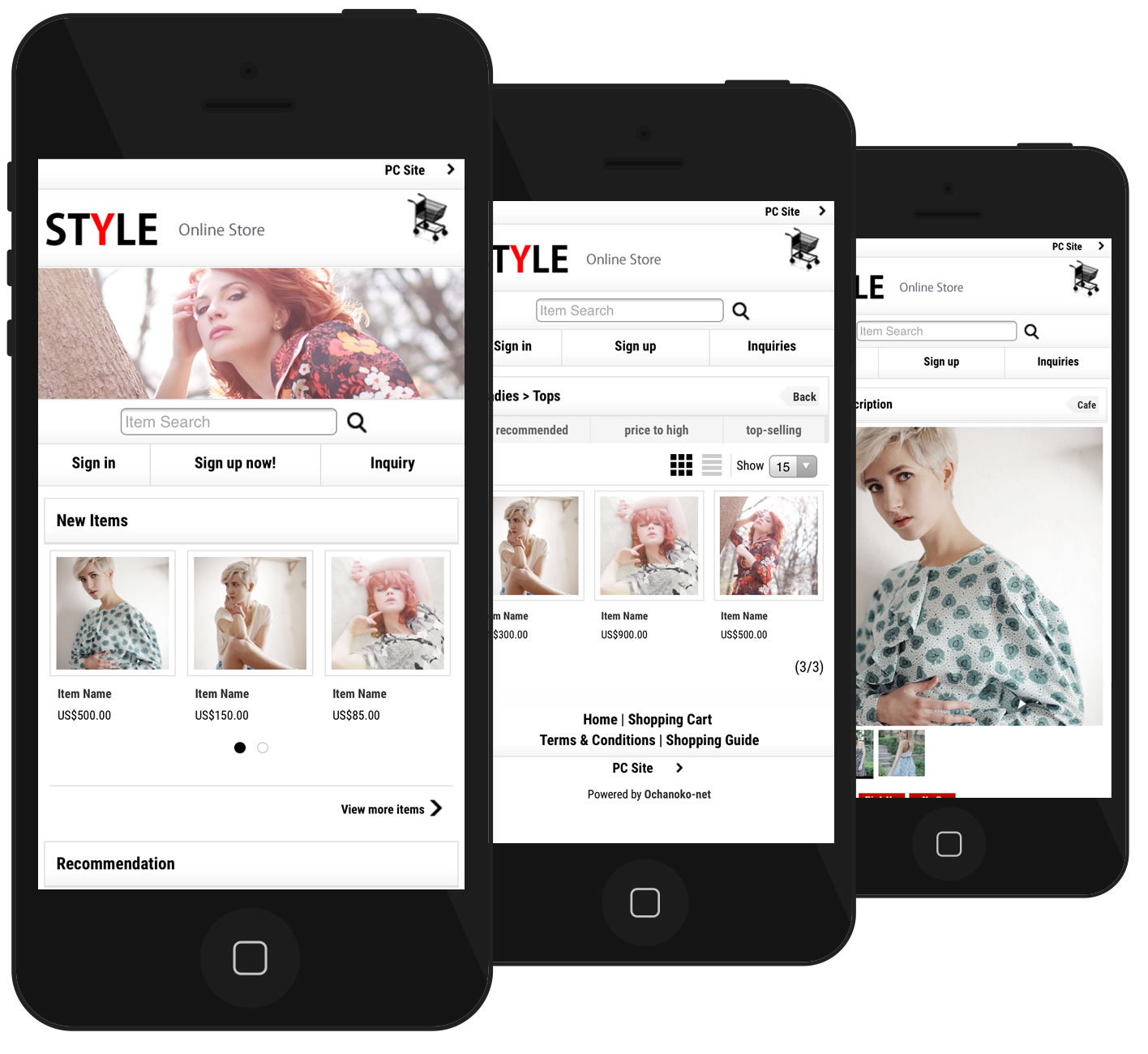
 Optimized for smartphones
When opened on a smartphone, your webstore will be adjusted in width to make it ideal for mobile access.
All menus and buttons will be optimized for maximum ease of use on a touchscreen.
Upon listing an item on your PC site, it will immediately become available on your smartphone site with all the same item information.
Your smartphone site is also customizable, with a wide array of pre-designed templates at your fingertips, and a CSS stylesheet for maximum customization. Integrate with social media
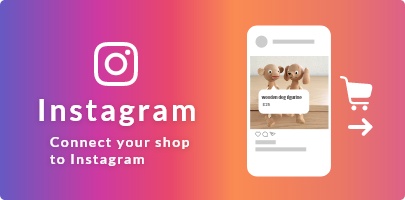
You can put Facebook "like" button etc, to your item page.
You can also tweet your item information from the item page.
 Discount your whole store
You'll be able to cut prices for all items in your store, with the option to opt out for any items you don't want to discount.
 Group your items into categories
Allow your customers to sort items by category or subcategory, and even sort by product group, including color, size, and more.
 Institute a rewards system
Issue discount coupons, and issue rewards points per unit of currency spent, which can be used for future purchases.
 Let your customers save their favorite items
Your customers will be able to save their favorite items, so they can buy them again and again.
 Personalize your customers' orders
Allow your customers to customize their own orders with names, patterns, and more.
 Show off your products on YouTube
Easily embed YouTube videos into your item pages and let everyone know how great your products are.
 Offer multiple gift wrap options
Give your customers the option to have their orders gift-wrapped, and even choose from multiple wrapping options.
 Customize your member registration page
Add questionnaires to the registration page to find out details about your customer base.
 Issue newsletters to your customers' inboxes
Let your customers know what's happening in your store by sending customized HTML newsletters straight to your customers' email.
 Recommend items to your customers
Automatically recommend new items on the basis of your customers' purchase history or keywords entered.
 Let your customers evaluate your items
Display numerical grades (out of five stars) for your items, as well as reviews written by your customers.
You even have the option to give a demographic breakdown to show which groups like a product the most. Display recently viewed items
Help your customers remember the items they have recently checked out by displaying a list at the bottom of every page.
 Schedule events with our calendar
With our multi-featured calendar, inform your customers of holidays, sales, when items will be back in stock, and other events, .
 Show off new and recommended items
Recommend or set items as new, and display them as such to your customers on the item list page.
 Interact with your customer community on the forum
Talk to your customers, let them talk to each other, and even upload images in discussion of your store.
 Pick out items to feature
Feature up to a hundred items, and rank them from first place to hundredth.
 Let your customers know what's new
Inform your customers about what's new in your store: new products, sales, holidays, and more.
 Personalize your store pages
Customize your Welcome Page, or create new pages from scratch, to fulfill whatever purpose you desire.
 Set limits on purchases
Set a minimum purchase threshold, or an upper limit on money spent on a single purchase.
 Keep your customers updated on your blog
Let your customers know what's going on in your life by posting on your blog.
 Mass register items
Use a CSV file to register multiple items at once and easily edit their information.
 Manage your images
Easily upload, edit and delete your store's images using our Image Manager tool.
 Upload with FTP$9.95per month (tax included)
For an additional fee, use FTP to upload large numbers of files at once.
Available file types: jpg (jpeg) / png / gif / ico / pdf / css / html (htm) Maximum file size: 200KB (500KB in /image/high.quality folder) Total FTP upload capacity: 5GB
 Create custom forms
Combine text boxes, radio buttons, check boxes, and selection boxes to create fully customized forms to collect information from your customers.
 Blacklist problematic individuals
If someone is giving you trouble, put their email address, phone number or IP on your blacklist to notify you if they make a purchase on your shop.
 Schedule sequential emails
Set up sequences of automated emails to be sent after a customer registers or makes a purchase.
 Refer your friends and get rewards
Take advantage of our affiliate program: if you refer a new paying customer to Ochanoko, you will receive a commission.
 Do transactions in a wide range of currencies
Select from more than 150 currencies from around the world, including dollars, pounds, euros, and yen.
 Manage your store in either English or Japanese
Serve customers around the world in English, or run your store in Japanese to focus specifically on establishing a customer base in Japan.
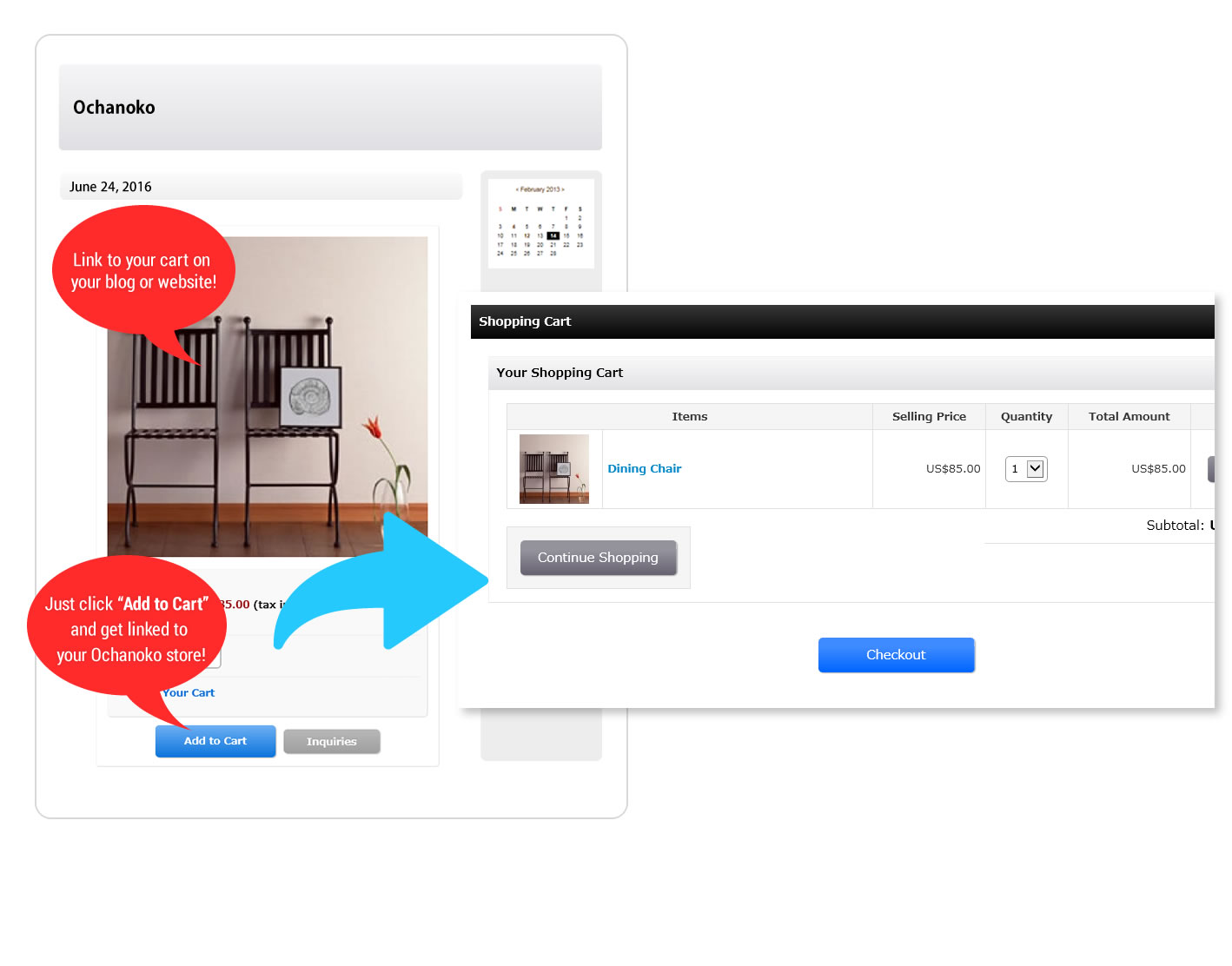
 Link to your cart on external websites
Put a link to your cart on any Javascript-enabled website by simply copying and pasting a code you can find in your Shop Manager, or link specifically to items for purchase.
The external cart function is property of Hands Inc., patented as No. 3883135.
PC specifications
Required for use of the control panel

Windows 11, Windows 10
[Browser]
Microsoft Edge, Firefox, Google Chrome Latest versions required.
macOS 11 or later
[Browser】
Safari, Firefox, Google Chrome Latest versions required.